Technical FAQs
Despite its reputation for being slow to adapt and held back by outdated, legacy technology, the insurance industry is undergoing a tremendous period of digital transformation. A new generation of InsurTech applications are helping insurers respond more quickly to a dynamic market and empowering customers to become more engaged with their policies. InsurTech digital collaboration is a key industry trend.
Digital collaboration tools are critical to this dramatic shift, which has created a unique opportunity for InsurTech developers. By deploying features that allow insurers to streamline workflows and improve communication both with internal stakeholders and customers, developers can capitalize on an emerging need and establish their applications as the “new standard” for digital collaboration in the insurance industry.
Creating Better Digital Collaboration Tools for InsurTech Software
Accessible Viewing
The ability to easily access and view insurance documents is increasingly important to insurance agents and customers alike. When assembling a policy bundle, insurance agents must reference multiple pieces of information about customers as well as detailed actuarial data from a variety of sources. By building HTML5 viewing capabilities into InsurTech applications, developers can help underwriters reference all relevant information within their existing workflow. Rather than ponderously requesting documents from other departments and receiving them via email, and opening them with an external program, they can simply request, search for, receive, or view files without ever exiting their secure application.
Customers, meanwhile, expect to be able to access their insurance records quickly and easily. Whether it’s a detailed description of their policy or a copy of their proof of insurance, they want the ability to log into a web-based application that allows them to locate and view records related to their account. This can greatly improve communication with their insurer since they’re able to quickly reference different aspects of their policy and identify their needs more clearly. Developers can build viewing features into an InsurTech application so customers can access their essential documents without having to download anything or take any additional steps. Insurers can also use the same features to easily provide updates about policies or rates.
Annotations
Building an insurance policy or evaluating claims can be a lengthy and confusing process without the right digital collaboration tools in place. Documents often need to be reviewed by people in different departments before bundled services and rates can be finalized. If an InsurTech application lacks collaboration features, insurers may need to resort to emailing documents back and forth along with their comments. There is ample space for miscommunication in this scenario, with vital comments potentially going unnoticed or the wrong document being sent as an attachment.
Built-in annotation tools allow insurers to leave comments, highlight areas of concern, and provide helpful notes directly on the files themselves. Developers can also make it possible to share and view those documents entirely within the application environment, which reduces the risk that someone will overlook important comments or compromise privacy by opening a file with poorly secured software. Annotation markups are stored separately from the original file until they need to be burned into a new copy. This protects the integrity of the source document throughout the collaboration process.
Version Control
One of the biggest challenges with digital collaboration is maintaining version control over documents. When multiple people are working on a file, it’s important to make sure that everyone is using the most up-to-date version of it. This is especially true of insurance documents because rates and risk adjustments can sometimes change quite rapidly. The last thing an organization (or their customers) want is to have inconsistencies spread across several documents due to poor version control.
Developers can combat version confusion by keeping every stage of document workflows within their InsurTech applications. Version problems are usually caused by people downloading documents, working on them in isolation with a separate program, and then uploading their changed versions back into the application. By making it possible to view and annotate content within the application, developers can help ensure that everyone is working from the most up-to-date version of every file.
Conversion
InsurTech applications must be able to handle a wide range of file types if they’re going to effectively facilitate digital collaboration. Customers often need to upload images as part of their insurance claims and will often provide documents as scanned images that can’t be searched for key text. Without the ability to convert files into more manageable formats, collaboration can quickly become an exercise in frustration and confusion.
Conversion tools not only make files more accessible, but also make it easier to manage content. Several small documents, for instance, could be combined into a single file for faster access, review, and markup. Developers can also incorporate Optical Character Recognition (OCR) into their InsurTech application to extract the text from a document image and use it to create a searchable PDF for more convenient reference. These conversion tools provide a great deal of workflow customization that allows their customers to set up efficient processes that help them deliver better services.
Boost InsurTech Digital Collaboration with PrizmDoc Viewer
Accusoft’s PrizmDoc Viewer is an HTML5 that integrates smoothly into your InsurTech application to deliver a powerful array of digital collaboration tools. Using a sophisticated collection of REST APIs, PrizmDoc Viewer provides support for multiple file types and can easily convert between formats to simplify insurance workflows. It also features a full range of annotation and redaction tools as well as OCR text extraction and electronic signature features.
With three decades of experience developing imaging and document management technology, Accusoft offers a variety of software integrations that can support digital collaboration efforts. From document assembly to secure spreadsheet support, our collection of SDKs and APIs can provide the features your InsurTech application needs to meet the evolving demands of the insurance industry. Check out our InsurTech fact sheet to learn how you can turn our capabilities into your capabilities.

As part of our ongoing commitment to supporting the LegalTech industry in its effort to transform the processes used by law firms and legal departments, Accusoft recently sponsored an educational webinar in conjunction with Law.com entitled “Build or Buy? Learning Which Is Best for Your Firm or Department.” Hosted by Zach Warren, editor-in-chief of Legaltech News, the webinar featured Neeraj Rajpal, CIO of Stroock & Stroock & Lavan, and Kelly Wehbi, Head of Product at Gravity Stack, a subsidiary of the Reed Smith law firm.
Together, the panelists brought two unique perspectives to the ongoing “build vs buy” debate, both from the software vendors who provide LegalTech solutions and the decision makers working at the legal firms who make difficult decisions regarding technology solutions.
Build vs Buy: The Choices Before the Decision
Both Rajpal and Wehbi agree that any decision involving building or buying technology solutions has to begin with defining the problem a firm needs to solve. Regardless of whether you’re working with an independent legal firm or a legal department within a larger organization, it’s critical to understand the business problem, existing pain points, and potential value of a solution.
“When you start asking the right questions,” Raijpal notes, “you sometimes come across a situation where the requirements are not very clearly defined and that is a big red flag to me because when requirements are not defined, you’re not solving anything.”
Wehbi shares that concern about the requirements gathering process, pointing out that things tend to go wrong when firms fail to consider both the scope and magnitude of the challenge they’re trying to overcome. “Organizations can struggle a lot when they jump a little too quickly to a solution or to thinking about just what the return would be on a potential new product or service offered.”
It’s also critical to make sure that the firm is willing to accept some degree of change. If existing business processes are unclear or if no one is willing to consider changing how they work, then no amount of technology is going to make a difference. Understanding the culture of the firm and securing the buy-in from leadership is absolutely critical to making any technology integration succeed whether you’re buying a solution or building one from scratch.
The Pros and Cons of Building LegalTech Solutions
For an organization that has the resources, methodologies, and skill sets necessary to develop a solution that’s specifically designed to meet its unique requirements, building can be a great decision. The key advantage here is that it focuses specifically on the firm’s processes and user pain points, allowing developers to design a solution that is much more targeted than an “off-the-shelf” product.
Benefits of Building
- Applications can be customized to your exact specifications, allowing them to better address your specific business needs.
- Since you manage the solution from end to end, you retain much more control in terms of application features and functionality, how data is managed, and access security.
- Developing a specialized solution creates room for innovative technology that can provide a competitive edge.
- A custom-built solution presents fewer integration challenges, especially when it comes to interfacing with legacy systems used by many legal organizations.
Risks of Building
- Building a new solution from the ground up requires a great deal of time and resources that might be better spent elsewhere.
- Investing in custom software creates substantial technical debt that must be maintained over time and could create integration problems in the future when additional upgrades are required.
- If the new solution doesn’t contribute enough to the bottom line to justify the cost of operations, it could lead to negative economies of scale that make it difficult for the firm to grow its business.
The Pros and Cons of Buying LegalTech Solutions
Not every organization has the development resources to build a customized solution from the ground up. If they’re not ready to make that capital investment, a cloud-based offering may be better suited to their needs. Leveraging a proven, ready-to-launch SaaS solution offers a number of advantages, but could impact how the company makes technology decisions in the future.
Benefits of Buying
- Since SaaS services are usually cheaper and easier to implement, they are often the best option for companies with limited IT resources.
- Cloud solutions are good for solving common technology problems that smaller firms face.
- Already-live functionality means SaaS solutions can be implemented on a faster time frame.
- The cloud vendor handles all building and maintenance costs associated with the platform.
- Since the vendor sets up workflows and integrations as well as troubleshooting, your internal team is freed up to focus on other tasks.
Risks of Buying
- Off-the-shelf solutions offer less customization and control over infrastructure and data.
- Even industry-specific SaaS solutions are built for a general market in mind, so their features may not solve your firm’s unique requirements.
- Since the vendor manages security, customers have less oversight over how their sensitive data is managed.
- Working with a SaaS provider exposes firms to market risk. If the vendor goes out of business or sunsets a product, it may be difficult to repatriate data or transition to another provider.
When to Build
For firms with the development resources that are already using in-house document management solutions to streamline processes, SDK and API integrations are often the best way to enhance functionality. Accusoft’s PrizmDoc Suite leverages REST APIs and advanced HTML controls to provide powerful document viewing, conversion, editing, and assembly capabilities to web-based applications. Our SDK integrations also allow developers to build the functionality they need directly into their software at the code level.
Document Assembly
Law firms need automation solutions that allow them to easily create and manage multi-part, multi-stage contracts. Thanks to Accusoft’s PrizmDoc Editor, legal teams can rapidly identify and assemble sections of pre-existing text into new content that is both editable and searchable. PrizmDoc Editor integrates securely into existing applications and delivers in-browser support to help lawyers assemble assets without resorting to risky external dependencies.
Case Management
LegalTech applications can manage and review cases much more efficiently by integrating data capture, file conversion, and optical character recognition (OCR) capabilities. The ImageGear SDK helps legal teams access case data in a variety of formats without the need for downloading additional files or relying on third-party viewing applications. It can also convert multiple file types into secure and searchable PDF/A documents, making it easy to tag files with client numbers, names, and other identifiable information. Thanks to PDF/A functionality, ImageGear ensures that firms can stay on the right side of federal regulations.
eDiscovery
The rapid transition to predominantly digital documents has fundamentally altered the way legal organizations approach the discovery process. Innovative eDiscovery processes can streamline case management while also protecting client interests. In order to implement these strategies effectively, firms need applications that provide extensive file format support and search functionality as well as redaction and digital rights management (DRM) tools capable of protecting client privacy. PrizmDoc Viewer delivers these features along with scalable annotation capabilities that make it easier for collaborators to proofread, review, and make comments to case files without creating version confusion. As an end-to-end eDiscovery toolkit, our HTML5 viewer also includes whitelabeling support so it can be fully integrated into your application’s branding.
When to Buy
For smaller legal teams looking for broad functionality without development hassles or a new firm taking its first steps toward document automation, it often makes more sense to implement a bundled, buy-in solution like Accusoft’s Docubee SaaS platform.
Document Completion
Docubee makes document management easy with drag and drop data routing. Users can quickly create legal contracts, route the appropriate data to documents, deliver contracts for approval, and facilitate signing with secure eSignature technology.
Customized Templates
With Docubee, legal teams can create customized document templates and manage them on a section-by-section basis. Individual clauses can be added or removed as needed, allowing attorneys to repurpose document templates instead of creating them from scratch for every client.
End-to-End Support
Two-way communication support helps firms to build better dockets and negotiate more effectively. Documents can be updated automatically and version controls ensure that everyone is always looking at the most up-to-date version of a contract. Docubee also allows users to prioritize key tasks with collaborative redlining and notification tools.
Long-Term Storage and Security
Docubee stores data for up to six years to meet eDiscovery requirements. To better protect client privacy and meet changing compliance requirements, firms can also set destruction dates for contracts, templates, and case files. Docubee is SOC2 compliant, featuring multi-layer encryption to keep data under tight lock and key.
Hear the Full Conversation
To hear the full webinar and learn more about how legal firms make the difficult choice between building or buying their next technology solution, sign up now to get access to an on-demand recording of the event. If you’re ready to learn more about how Accusoft technology is helping to power innovation in the legal industry by delivering the latest in content processing, conversion, and automation solutions, visit our legal industry solutions page or contact us today to speak to one of our product experts.
Anyone who has watched a thriller about government secrecy probably has an image in mind about what it means to redact a document. That picture usually involves piles of classified pages with entire paragraphs blotted out with black marker. At some point, a character holds a sheet up to a light and finds a spot where the redacted text is just barely visible enough to provide them with the next clue that moves the story forward. They may even use some special form of scanner that allows them to see the hidden material.
Such scenes reveal the fundamental problem with text redaction. As long as the content remains present, there might be some way of making it visible again, which presents serious problems in terms of privacy and security. The transition to purely digital documents should have made these concerns a thing of the past. Unfortunately, too many people fail to take advantage of PDF redaction tools and leave their confidential material dangerously exposed.
PDFs Are Not Like Physical Documents
In 2016, Democrats in the U.S. House of Representatives made the embarrassing mistake of releasing a cache of documents that contained improper redactions. Journalists easily found what was hidden beneath the black markings by copying the PDF text and pasting it into another document, which instantly revealed the redacted material.
This was not the first time government officials, or other organizations, released improperly redacted documents. Part of the reason why this mistake keeps happening is that people frequently apply the same practices used with physical documents to digital documents. It’s a simple matter to use shapes or drawing tools to obscure text in a PDF, but doing so only hides the content from view rather than removing it altogether.
As the “copy and paste” trick described above shows, it’s often trivially easy to bypass such “redactions.” That’s because a PDF document is not like a physical, printed document, even though it resembles one in a viewer. A PDF consists of multiple layers, as well as extensive metadata that isn’t visible. Adding a black box over text simply adds another layer to the document. Accessing the layer of text information underneath is quite simple, even with relatively basic software tools.
Redacting Content from Electronic Documents
The first step in true redaction involves the removal of selected content entirely. This ensures that even if someone is able to extract the text layer from the document, the redacted portions will not become visible when pasted elsewhere.
However, even removing the visible text itself may not be enough to protect confidential information. That’s because there may be some data remaining in the document that could contain information about how to render the redacted portions. While it would be possible to avoid this problem by converting a PDF to a bitmap image, removing the portions to be redacted, and then building an entirely new document using OCR, this process is time consuming and difficult to scale.
Using PDF Redaction Tools in PrizmDoc Viewer
A much more efficient approach would be to utilize dedicated PDF redaction tools like those built into PrizmDoc Viewer. Thanks to a sophisticated and intuitive API, PrizmDoc allows users to perform a number of redaction functions within its easy-to-use HTML5 viewer:
- Add individual redactions by selecting text, applying a redaction rectangle, or marking out the whole page.
- Perform a search for specific terms and apply redactions to each instance.
- Add redaction layers to a document that can be saved and edited during preparation.
- Apply redaction reasons to explain why certain content has been removed.
When integrating PrizmDoc Viewer into their applications, developers can also customize the HTML5 viewer to apply predefined redactions, preload entire redaction layers, or create unique redactions programmatically. This is especially useful for high-volume document workflows that need to identify and remove commonly used private data like Social Security numbers, contact information, and financial information.
PrizmDoc Viewer’s redaction API strips out all information associated with the redacted material from the document. That means any removed content isn’t just no longer visible; it also can’t be highlighted, copied, searched, or indexed because it’s no longer present in any way. Remaining text content, however, is still readily available. Even better, sharing documents through the HTML5 viewer also hides metadata that could contain sensitive information.
When redactions are made, PrizmDoc Viewer allows users to indicate the reasons for these removals. This is especially important for transparency purposes when working with government documents. The redaction API supports single and multiple redaction reasons for improved clarity.
Of course, most organizations still need to retain access to unredacted documents for internal use. That’s why PrizmDoc Viewer retains an unaltered version of the document safely uploaded to the server. The actual redacted document is a new file with all redacted content removed. Users can then use PrizmDoc Viewer’s sharing controls to further manage access to the file.
Redact Your Documents the Right Way
Today’s applications can’t afford to take redaction lightly. Whether they’re building the next generation of government technologies or LegalTech applications, developers need to provide their customers with the ability to easily screen documents to protect sensitive and private information from being exposed. By integrating viewing and document editing solutions with PDF redaction tools, they can help organizations take control over document security and avoid embarrassing redaction mistakes that could expose them to severe liability.
PrizmDoc Viewer’s versatile HTML5 viewing capabilities leverage powerful APIs to easily incorporate document redaction into application workflows. With just a simple API call, users can quickly locate and remove information from documents before sharing them with anyone outside the organization. To see PrizmDoc Viewer’s PDF redaction tools first hand, check out our interactive online demo today.
According to a recent Gallup poll, employee engagement is at its highest level in decades: 34 percent say they’re “enthusiastic about and committed to their work and workplace.” And while CTOs and CEOs can take some comfort that better engagement means improved productivity, the numbers beg an obvious question: What about the other 66 percent?

Screenshot
The People Problem
Millennials now rule the roost, and 61 million members of Generation Z are about to enter the workforce. The result? Companies need to account for changing preferences around workspace design, collaboration, and creativity.
As noted by Forbes, 47 percent of staff say workspace design impacts their productivity, and 42 percent say it impacts the quality of their work. The combined challenge of workforce and workplace shifts makes it easy to pin the blame for productivity on employees. Maybe they just aren’t getting what they need, or maybe they’ll never be satisfied. The hard truth?
Outdated processes — not evolving employee expectations — are the likely cause of productivity problems. In fact, recent data suggests that poor document management processes force staff to spend over four hours per week searching for documents they can’t find or recreating these documents because they’ve disappeared. Put simply? You don’t have a people problem — you’ve got a process problem.
The Process Problem
So what’s wrong with your process, and how can you fix it without breaking the bank?
First, organizations need to recognize that it’s not a single process that’s killing productivity. Instead, it’s a combination of multiple, outdated practices that conspire to lower employee efficacy. Here, document management is the biggest culprit, especially for businesses making the transition from paper record-keeping to digital storage as they face increasing compliance and audit demands.
Even companies leveraging optical character recognition (OCR) and image editing solutions to convert old file formats and historical documents often find themselves employing legacy processes such as manually printing and reviewing documents, hand-delivering them around the office, or digitally emailing documents around for edits.
On the digital side, many enterprises struggle with the volume, variety and velocity of “big data” entering corporate networks. As noted by Tech Target, even as data storage costs drop companies struggle to determine what they should keep, how they should protect it and who needs access permissions. The result is a kind of fragmented access framework that drives digital document sprawl. Other bad habits include:
- Users often crowd their desktop devices with files they may need someday. The result? They can’t find what they need, when they need it — and may end up creating a duplicate document instead.
- File and document downloads are commonplace. Not so common? Regularly sorting this folder to delete what isn’t necessary. Problems happen when staff need to find previously-saved attachments or files but don’t have the time to fight their way through months of accumulated data — so they download the file again.
- Finished documents are due tomorrow, but your company doesn’t have a document collaboration tool that lets staff easily compare and edit multiple file types. The solution? Print multiple copies of everything, review them all manually, and reach a consensus. The issue? Sorting through the mountain of mark-ups that result.
- Corporate email accounts often limit file size, forcing staff to use external file sharing options. Beyond potential security issues, these workarounds make it almost impossible to track document versions.
Taken individually, these processes aren’t problematic. Compiled at scale across an organization, however, companies are bleeding money.
The Document Management Advantage
Third-party workstream collaboration tools are one option to bandage this wound but often create more problems than they solve by forcing employees to operate outside their normal workflow environment. The better, budget-friendly option?
Build document editing capabilities and tools for OCR, forms processing, compression, and barcode into currently-used applications. You can also automate document management with tools that streamline the process of sorting through big data by making it easy for staff to find what they’re looking for, make required edits, and share it with colleagues.
In the same way organizations now look to improve their physical spaces to enhance employee productivity and engage more end-users, CEOs and CTOs must recognize the value of enhancing in-use digital solutions to empower staff collaboration, reduce wasted time and improve company-wide document management.

The ability to watermark documents is essential for many businesses. By utilizing watermarks, organizations can quickly brand their assets and take steps to protect their valuable intellectual property. When identifying mission critical document features for their applications, developers need to keep in mind all the ways that watermarks continue to be deployed for a variety of use cases.
What Is a Watermark?
A watermark is a semi-transparent line of text or an image that is embedded into a file to indicate that it belongs to a person or organization and cannot be reproduced or distributed without permission. In most instances, watermarks are visible, but some text-based watermarks are embedded in such a way that they only become visible after the document is scanned or printed.
Digital watermarks are one of the earliest and most effective forms of security for documents and images. They are most commonly used by photographers who want to protect their images from unauthorized usage. Their watermark is superimposed over the image, making it difficult to remove without also damaging the source image in the process.
The same basic principle applies to documents, especially PDF files that are easy to download, view, and distribute. Many organizations continue to add specialized watermarks to their documents to protect both confidential information and intellectual property. Understanding which types of watermarks to use and why is an important aspect of effective document security.
Why Should You Watermark Documents?
There are a few reasons why an organization may want to watermark documents. Although they’re most often associated with security, they can be used for other purposes as well. Here are a few major use cases involving document watermarks:
Classify Documents More Easily
File management can be a challenge for organizations of all sizes. While steps like naming conventions can help somewhat, it can be difficult to keep track of which files can be shared openly and which ones should only be opened and viewed within a secure application environment. Watermarks can be added to documents to indicate how they should be handled. A contract that’s labeled “Confidential,” for instance, makes it clear to the user that they should follow the proper security precautions when viewing the file, such as not leaving the screen open unattended or not sharing their screen with another participant on a video call. It also removes any ambiguity about the nature of the document.
Track Your Documents
While many free watermarking tools only allow users to add a generic logo or text to a document, dedicated viewing solutions like PrizmDoc Viewer can create watermarks that contain unique identifiers, making it easier to track documents throughout their lifecycle. This makes it easier to track down the source of a leak or breach if a file ends up somewhere unexpected. In addition to the security benefits, customized watermarks that include a user name, time stamp, or revision number helps organizations maintain better version control over their documents and avoid any confusion over which file is the most up-to-date.
Discourage Unauthorized Distribution
Watermarks are an easy way to indicate ownership of a document and its contents. While many files, and PDF files especially, are protected by some form of digital rights management (DRM) that limits who can open, edit, or copy them, this form of security is often circumvented by inventive tactics like taking a screenshot, capturing video footage, or even photographing a screen with an external device.
If the captured document has a watermark, it will be quite difficult for someone to distribute the file without revealing the owner. While it’s possible to remove a watermark without damaging the document contents, doing so can be a difficult and time-consuming process that often isn’t worth the effort. More importantly, if the watermark contains identifying information, it’s often possible to find out where a security breach occurred and then locate those responsible for it.
How to Watermark Documents
While many organizations understand the value of adding watermarks to their documents, they often don’t have the tools in place to do so effectively at scale. There are a number of free watermarking web applications available, but these sites typically require a file to be uploaded first, which creates a huge security risk for most businesses. In many cases, this process is also irreversible because it burns the watermark into the document itself.
Microsoft Word can easily add watermark text or images to a document, but they’re also quite easy to remove. In fact, a quick Google search points to multiple resources for removing Word-based watermarks from both DOCX and PDF files.
PrizmDoc Viewer supports multiple forms of document watermarks natively within an application, including identifying text, diagonal text, and images. More importantly, since the watermark is associated with the document viewing session, it isn’t applied to the source document itself, which remains secure within the main application. Watermark document properties can be specified to include more than one watermark in a viewing session, even supporting mixed types on different areas of the page.
Text Watermarks
The watermark API for PrizmDoc Viewer allows users to adjust the location, size, and style of the text. Information included can be adjusted based on document needs.
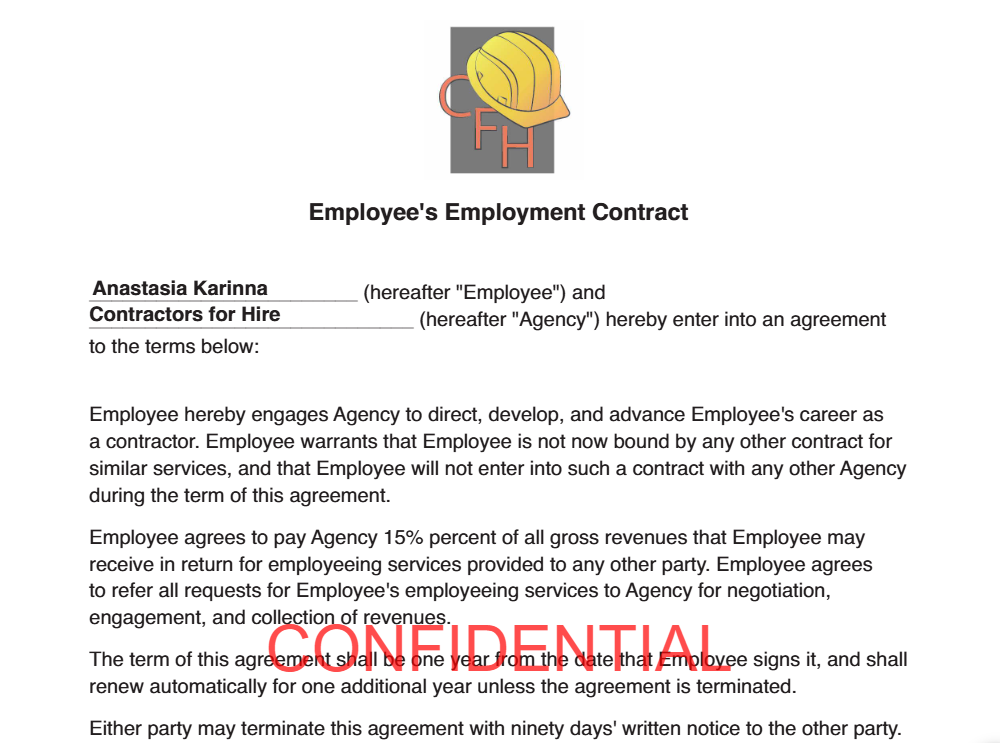
Diagonal Text Watermarks
PrizmDoc Viewer can apply a single directional text watermark across the center of the page. By including control characters in the text string, it’s possible to create line breaks in the text.
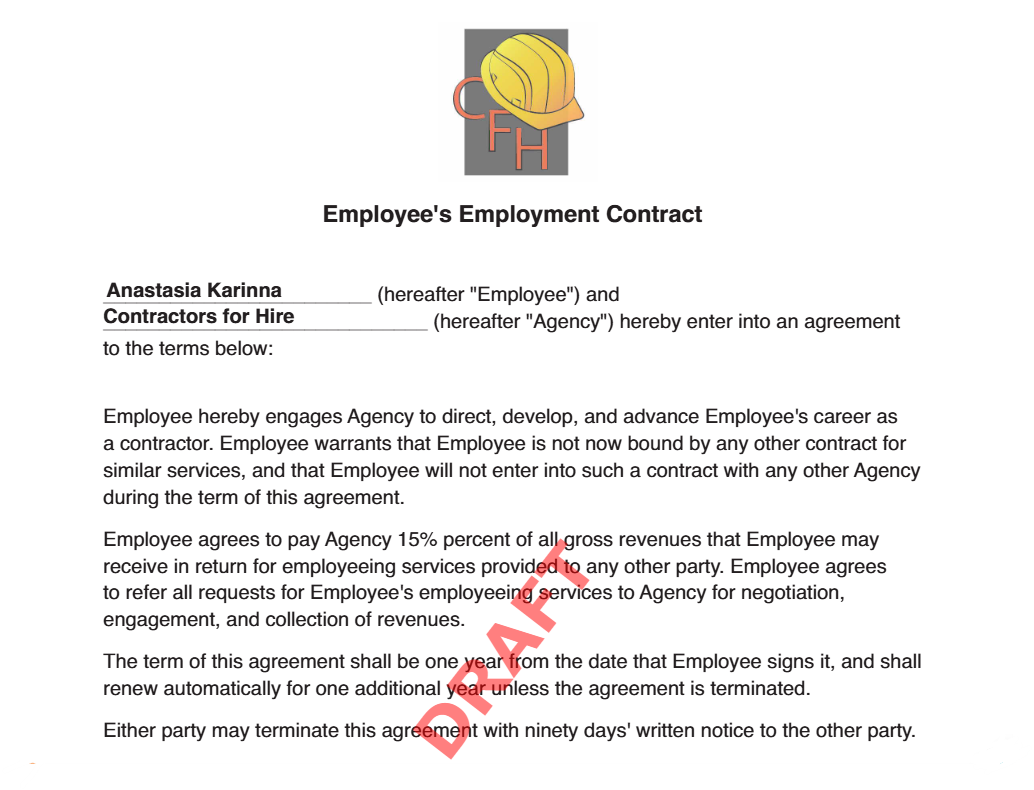
Image Watermarks
The watermark API can also add a transparent PNG file to the document, which is ideal for displaying a company logo. PrizmDoc Viewer can adjust the opacity of the watermark regardless of whether it’s an image or text.
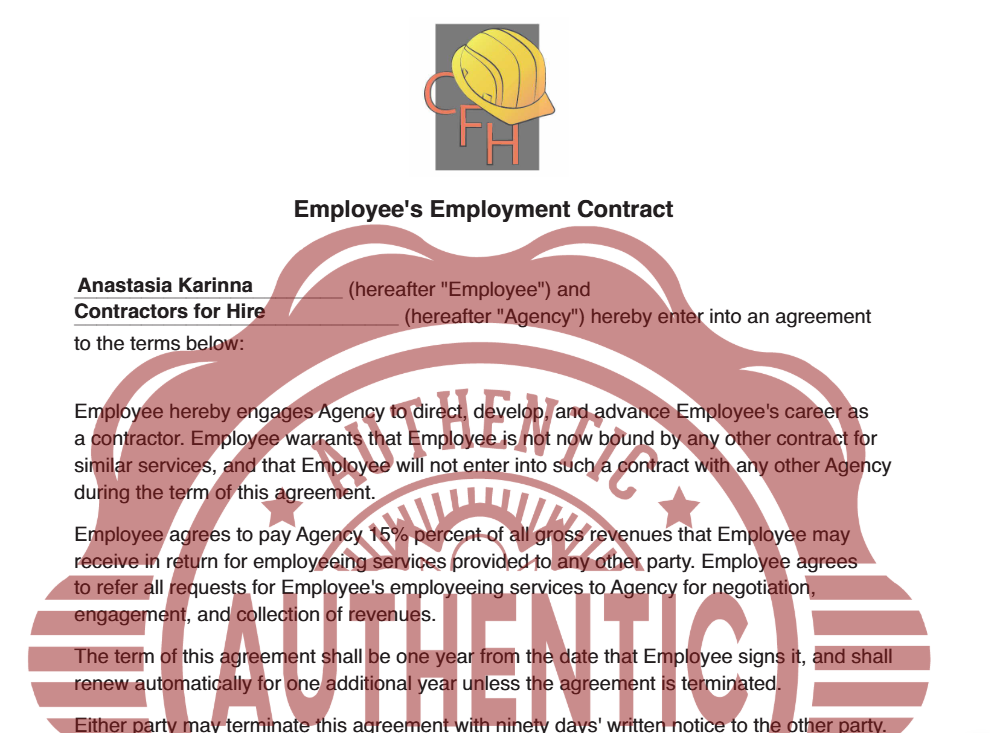
By adding multiple watermarks, organizations can easily brand their files across the company while also providing effective tracking information for individual documents.
Start Watermarking Documents Today with PrizmDoc Viewer
A fully-featured HTML5 viewer, Accusoft’s PrizmDoc Viewer is easily integrated into web applications in need of comprehensive viewing and document management capabilities. In addition to watermarking, it delivers conversion, OCR, annotation, and redaction support for more than 100 different file types. Get a hands-on view of how easily PrizmDoc Viewer can apply custom watermarks to your documents with our watermarking API demo.
The lifeblood of transportation companies is the ability for clients to check their shipping order status. For Manitoulin, they enhanced their web portal for customers to retrieve and view scanned documents including, bills of lading, proofs of delivery, and invoices. Shortly after its launch, the portal was accommodating over 35,000 visits per month, and challenges with viewing speed arose. Learn how Manitoulin solved this problem with Accusoft’s PrizmDoc® for Java, formerly VirtualViewer®.
To comply with federal anti-money laundering/anti-terrorist laws and regulations, the USPS analyzes images of cleared postal money orders to detect possible suspicious activity. Because there are no required standards for the image formats, when the Federal Reserve initiates the digital process and issues the electronic image of the money order, the USPS must be able to read the multiple formats as well as convert the files to a standard format for analysis. Each money order is made up of two images, one each for the front and back.
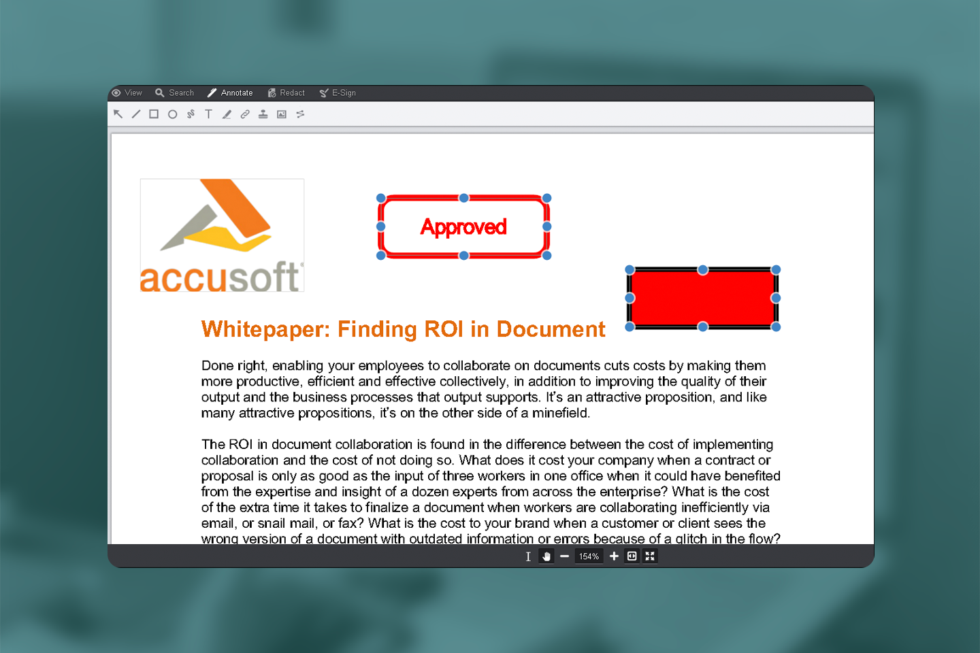
With the annotation feature, PrizmDoc makes it easy to collaborate, proofread, review, and add comments to your documents all in one place. Whether you are a cloud or self-hosted user, getting to know the different annotation tools and how to use them will help you get the most out of PrizmDoc. If you haven’t had a chance to use PrizmDoc yet, this will give you a better understanding of the annotation tools and how they can benefit you.
Annotate Tab Toolbar

The annotate tab contains all of the tools that you can use to collaborate and review documents.
The annotate tab allows you to choose a variety of annotation tools that you can use when collaborating and reviewing documents. You can also choose whether annotations get burned into the document or not. We will go a bit more in-depth into each tool and how to use it below.
Annotation Layers
 Annotation layers button
The annotation layers option is the first button on the annotation toolbar. This allows you to view the annotation layers to see which feedback was left by each contributor or department.
Here’s a look at the annotation layers, which appear as a sidebar to the left side of the document:

The annotation layers appear in a sidebar to the left of the document.
Here, you can see “My Annotations” as well as “Annotations for Review,” which in this example were made by the Manager and Payroll Supervisor. The eye icon to the right of the annotation owner’s name allows you to hide or view the annotations made by each contributor.
Let’s see what happens when we hide the annotations made by the Manager.
Here’s what the document looks like when we show all of the layers:

Here’s what it looks like after hiding the Manager’s annotations:

Note that the eye icon next to “Manager” now has a strike through it, and the Manager’s annotations are now hidden from view.
Arrow Annotation
 Arrow annotation button
The arrow annotation button allows you to create arrows in order to draw attention toward annotations you have made. For example, the red arrow below is drawing attention to the name “Joe Smith” with a corresponding comment that the employee now reports do a different manager. This helps ensure that the document owner makes the important change in their system. Customization options for the arrow tool includes color, opacity and line thickness.

Line Annotation
 Line annotation button
This tool can be used to draw line annotations. This is helpful for drawing attention to certain elements of the document that need review. After you draw the line on the document, you can then add a corresponding comment to add further explanation. Similar to the arrow tool, the line annotation allows you to select color, opacity and line thickness.

The option to add a comment will appear when you hover your mouse over the line annotation. These comments will appear on the right side of the screen.
Rectangle Annotation
 Rectangle annotation button
This tool can be used to draw rectangle annotations with a fill or outline only. This is another great tool for drawing attention to annotations made on the document or certain elements that need review. Like the other annotation tools, you can add further explanation in a comment that will appear on the right side of the screen.
To add a comment, click on the annotation element (in this case the rectangle). Then choose “Add Comment,” which appears as a speech bubble, in the editor located in the top right side of the viewer.

The editor in the upper-right corner allows you to change the color of the annotation element as well as add and delete comments.
Ellipse Annotation
 Ellipse annotation button
The ellipse annotation can be used to draw ellipse or circular annotations. Much like arrows, lines, and rectangles, these can be used to draw attention to certain elements that need review. Customization options include fill color, outline color, and transparency.

The circle here draws attention to “Joe Smith,” a name that will need to be changed on future documents. Use comments to describe why you are marking this for review.
Freehand Annotation
 Freehand annotation button
Not everything in life fits into a neat little box or circle. That’s where the freehand annotation tool comes in. This allows you to draw your own annotations right on the page. Below is an example of what this might look like. As with the other annotation tools, you can then add a corresponding comment to provide additional information. You can also control color, opacity, and line thickness.

This freehand circle draws attention to a change that will need to be made in the records with a corresponding note to what exactly that change is.
Polyline Annotation
 Polyline annotation button
If you’re not feeling adventurous enough to draw your own annotations freehand, you might consider using the polyline annotation tool. This lets you draw lines around the element that you would like to draw attention to. To draw a polyline annotation, click where you want it to begin, click again to stop the line and start a new line. Double-click to complete the annotation. Like the freehand annotation tool, you can select color, opacity, and line thickness options.

The corresponding comment allows you to provide a bit more detail on why this part of the document needs changes.
Text Annotation
 Text annotation button
Text annotation allows you to type directly on the document, rather than leaving comments on the side for contributors to comment on. This might be used for quick changes or placeholders where you need to add text to the document. The text tool has a variety of options, including text color, font, size, style, and alignment.

The words that you type are placed in a box so that others can see what changes have been made. In this case, the text annotation is used to create a placeholder for where the company logo will be featured.
Highlight Annotation
 Highlight annotation button
Highlight annotation is yet another useful tool for drawing attention to certain changes that need to be made on the document. Below, the signature space is highlighted with a corresponding comment explaining what still needs to be done.

Others can reply to your comments, which allows you to monitor progress on the changes or get answers to questions that others may have.
Strikethrough Annotation
 Strikethrough annotation button
Everyone makes mistakes! The strikethrough annotation tool allows you to cross these mistakes out or strikethrough any elements of the document that are no longer necessary or you wish to delete.

Make sure you leave a comment to let other contributors know why you have crossed out one of the document items.
Hyperlink Annotation
 Text hyperlink annotation button
You can use the text hyperlink annotation tool to add hyperlinks to your documents. Highlight the text that you would like to hyperlink and type or paste the corresponding link into the box. You can either add the link with the checkmark icon or delete the link by clicking on the trash can.

After you have added the hyperlink to the text, it will remain highlighted in purple on your view of the document.
Stamp Annotation
 Stamp annotation button
The stamp annotation tool lets you stamp each document as “Approved,” “Reviewed,” or “Rejected.” This is a simple way to streamline the process of accepting documents and keeping track of which documents have already been reviewed and by which reviewer.

If red is too much, you can change the color of the stamp in the editor.
Image Stamp Annotation
 Image stamp annotation button
The image stamp annotation tool works just like the stamp annotation, but you can include your own image instead of the pre-made stamp options. This can be useful if you want to add your company logo to documents or other images that you use regularly.

Though a green checkmark and a red “X” are available to use, you can upload any image you want.
Haven’t had a chance to try PrizmDoc yet?
If you have not had the opportunity to try PrizmDoc, there is no better time than now. Check out the annotation demo to get some hands-on experience using the annotation feature, and start your free 30-day trial today to experience the full range of PrizmDoc functionality.